Next.js - Ah, FOUC...
10 minute readAug 21, 2025Sep 13, 2025webdev, nextjsThe problem
What is "FOUC"? FOUC is what you say when you run into this issue
FOUC is an issue that
happens when the page content loads before its styles. It causes a split-second
flash of the raw unstyled content until the styles load and update the page to
look as intended.
In the old days, the quick fixes for FOUC were to:
- Move or even inline critical styles in the
<head>to force the browser to load them before the content. These should be kept short as possible as they block the loading of the rest of the page. - Set certain styles such as user's preferred theme on the server-side (e.g.,
<html class="dark">) to "bake" it into the HTML instead of doing it on page load with a client-side script.
I recently ran into FOUC while working on my personal website. Here's what happened:
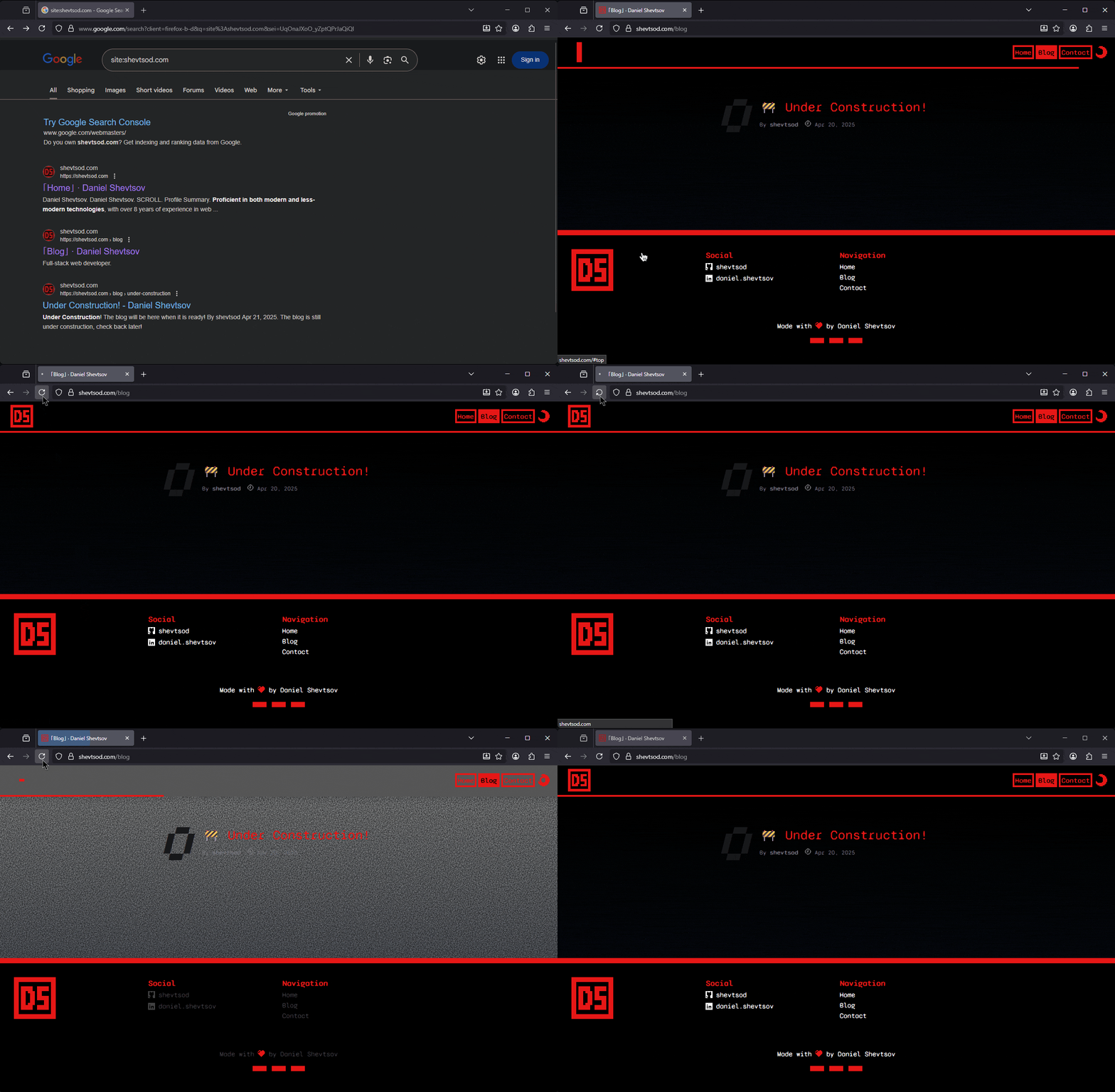
User's POV:
But what's going on? Well, it's a specific form of FOUC that would be more appropriate to call "Flash of Default Theme." The app loads the "light" theme by default and then realizes the user actually wanted the dark theme, so it course corrects but by that point it's already too late.
Let's see exactly where it happens. This project uses Next.js with the App router and Tailwind for styles. I wanted to have the following functionality:
- Have a
lightanddarktheme. - On first visit, follow the user's operating system preference to select the initial theme.
- Store the selected theme for subsequent visits.
- Provide a "theme switcher" button that allows the user to override the theme.
The
app/layout.tsx
component is very standard:
export default async function RootLayout({ children }: RootLayoutProps) {
  return (
    <html>
      <body>{children}</body>
    </html>
  );
}
Following Tailwind's docs for
Dark mode, the Layout.tsx component
looks something like:
'use client';

export default function Layout({ children }: LayoutProps) {
  const [theme, setTheme] = useState<string | undefined>(undefined);

  // Detect and set the initial theme
  useEffect(() => { // 💥 The problem is here!
    // Previously selected theme stored in localStorage
    const storedTheme = localStorage.getItem('theme');
    // System preference
    const preferredTheme = window.matchMedia('(prefers-color-scheme: dark)')
      .matches
      ? 'dark'
      : 'light';
    // Resolve the theme by order of precedence
    const resolvedTheme = storedTheme || preferredTheme;

    setTheme(resolvedTheme);
    localStorage.setItem('theme', newTheme);
    document.documentElement.classList.remove(oldTheme);
  }, []);

  return (
    <div>
      <Header />
      {children}
      <Footer />
    </div>
  );
}
Nothing too crazy here, we just use a useEffect hook that runs when the
component is mounted and we:
- check if the user already has a theme preference stored in
localStoragefrom a previous visit. - otherwise, check if the user has a preferred operating system theme via
prefers-color-scheme. - Set the theme we detected in three places:
- In a
themestate variable so we can pass it down to components (e.g., a theme switcher button). - In
localStorageso that their preference is remembered on the next visit (step 1 above). - In the DOM itself via
document.documentElementso we end up with<html class="dark">and let Tailwind take it from there.
- In a
But... the useEffect itself is the problem. 😭 app/layout.tsx is a server
component that renders static HTML, so the initial page render looks something
like:
<html>
  <head>
    <!-- ... -->
  </head>
  <body>
    <!-- ... -->
  </body>
</html>
Then, our Layout.tsx, a client component, mounts client-side and runs its
useEffect, which results in
<html class="dark">
  <head>
    <!-- ... -->
  </head>
  <body>
    <!-- ... -->
  </body>
</html>
This is what we wanted but it happened too late. We already rendered with the light theme so the user got 💣 flashbanged 💣. If you add some styles to smoothly transition between themes, the problem is exacerbated - your fancy transition betrays you and draws even more attention to the FOUC by making it last longer.
We can't move this logic to app/layout.tsx because it's a server component
that doesn't have access to browser APIs. We also can't just make Layout.tsx a
server component. It needs to be a client component because it uses
browser APIs like document and localStorage. So what can we do?
The solution
To be clear, the issue I am describing is related to SSR/SSG apps and intricacies between server and client components. I've spent some time researching possible solutions and, as it turns out, there isn't a nice, simple, and "clean" solution in Next.js right now...
There's a long discussion about exactly this issue in the Next.js repo:
The solutions/workarounds proposed in the discussion fall into two categories:
- Solutions that involve storing and loading the theme with HTTP APIs such as
cookies()inlayout.tsx. - Solutions that involve breaking out of React and injecting a
<script>above the content.
In all cases, the solutions try to work around the server-client boundary by injecting the theme outside the React app.
In my case, solution #1 is immediately out the window because my app is statically exported to GitHub Pages and I can't use any HTTP APIs. 😅 So, we're left with solution #2. Let's see how we can make it work.
The basic idea of solution #1 is to create a script like this:
function script() {
  try {
    const storedTheme = localStorage.getItem('theme');
    const preferredTheme = window.matchMedia('(prefers-color-scheme: dark)')
      .matches
      ? 'dark'
      : 'light';
    const resolvedTheme = storedTheme || preferredTheme;
    document.documentElement.classList.add(resolvedTheme);
  } catch (_) {}
}
This script will NOT be transpiled so it should not use any newer ECMAScript features to support as many browsers as possible. It will also be injected above the app content, so it should be kept as short as possible.
Then, we want to create a React Context to allow our React components to read
and set the theme.
export interface ThemeContextProps {
  /** the current theme */
  theme?: string;
  /** update the current theme */
  setTheme: React.Dispatch<React.SetStateAction<string>>;
}

const ThemeContext = createContext<ThemeContextProps>(defaultThemeContextProps);
We can create a useTheme hook to make consuming the context friendlier:
export function useTheme() {
  return useContext(ThemeContext);
}
This will let our components read and set the theme like so:
const { theme, setTheme } = useTheme();
theme and setTheme can only be used client-side and will result in a
hydration error (more on that later) if an attempt is made to render based on
these values on the server.
To use these in our components, we'll need to make sure we're rendering on the client, i.e.,
'use client';

export default function MyComponent() {
  const { theme, setTheme } = useTheme();
  const [mounted, setMounted] = useState(false);

  // sets mounted to true when rendered on the client
  useEffect(() => {
    setMounted(true);
  }, [])

  if (!mounted) return null;

  return (/* ... */);
}
Finally, to tie it all together, we create a custom ThemeProvider that wraps
the ThemeContext.Provider and injects our script above the content.
/**
 * Provides ThemeContext to children
 */
export function ThemeProvider({ children }: ThemeProviderProps) {
  const [theme, setTheme] = useState<string | undefined>(() => {
    if (typeof window === 'undefined') return undefined;

    // Previously selected theme stored in localStorage
    try {
      const storedTheme = localStorage.getItem('theme');
      // System preference
      const preferredTheme = window.matchMedia('(prefers-color-scheme: dark)')
        .matches
        ? 'dark'
        : 'light';
      // Resolve the theme by order of precedence
      return storedTheme || preferredTheme;
    } catch (_) {}
    return undefined;
  });

  // Applies a new theme to DOM and localStorage
  function applyTheme(theme: string) {
    localStorage.setItem('theme', theme);
    document.documentElement.classList.remove('dark', 'light');
    document.documentElement.classList.add(theme);
  }

  const handleMatchMediaChange = useCallback(
    (event: MediaQueryListEvent) => {
      setTheme(event.matches ? 'dark' : 'light');
    },
    [setTheme],
  );

  // Change theme based on user preference
  useEffect(() => {
    const matchMedia = window.matchMedia('(prefers-color-scheme: dark)');
    matchMedia.addEventListener('change', handleMatchMediaChange);

    return () =>
      matchMedia.removeEventListener('change', handleMatchMediaChange);
  }, [handleMatchMediaChange]);

  // Apply the theme whenever the themeState changes
  useEffect(() => {
    if (theme) {
      applyTheme(theme);
    }
  }, [theme]);

  return (
    <ThemeContext.Provider value={{ theme, setTheme }}>
      <script
        suppressHydrationWarning
        dangerouslySetInnerHTML={{ __html: `(${script.toString()})()` }}
      />

      {children}
    </ThemeContext.Provider>
  );
}
There's a lot going on here, so let's break down a few important bits:
-
const [themeState, setThemeState] = useState<string | undefined>(() => {
  /* ... */
});
Same as before, this is our
themestate variable that our components can use to read and set the state. We call itthemeStatebecause we wrapsetThemeStatewith our ownsetThemethat has a couple of side effects and is what we pass into ourThemeContext. This time, we pass it an initializer function to set the initial theme fromlocalStorageorprefers-color-scheme. -
The
applyThemefunction actually updates the theme in bothlocalStorageand the DOM (document.documentElement). -
The
setThemecallback is our wrapper forsetThemeStatethat also callsapplyThemeas a side-effect. -
// Change theme based on user preference
useEffect(() => { /* ... */ }
This
useEffectlistens for changes toprefers-color-scheme(i.e., if the user changes their operating system or browser preference) and callssetTheme. -
// Apply the theme whenever the themeState changes
useEffect(() => { /* ... */ }
This
useEffectcallsapplyThemeto actually apply the theme (inlocalStorageand the DOM) wheneverthemeStatechanges. -
<script dangerouslySetInnerHTML={{ __html: `(${script.toString()})()` }} />This is the secret sauce that makes it all work. This serializes our
scriptfrom before as an IIFE (an anonymous function that is executed immediately) and places it in a<script>element just above our app content which makes it run first.
Then, to actually use it, we update our app/layout.tsx like so:
export default async function RootLayout({ children }: RootLayoutProps) {
  return (
    <html>
      <body>
        <ThemeProvider>{children}</ThemeProvider>
      </body>
    </html>
  );
}
But wait... there's another issue...
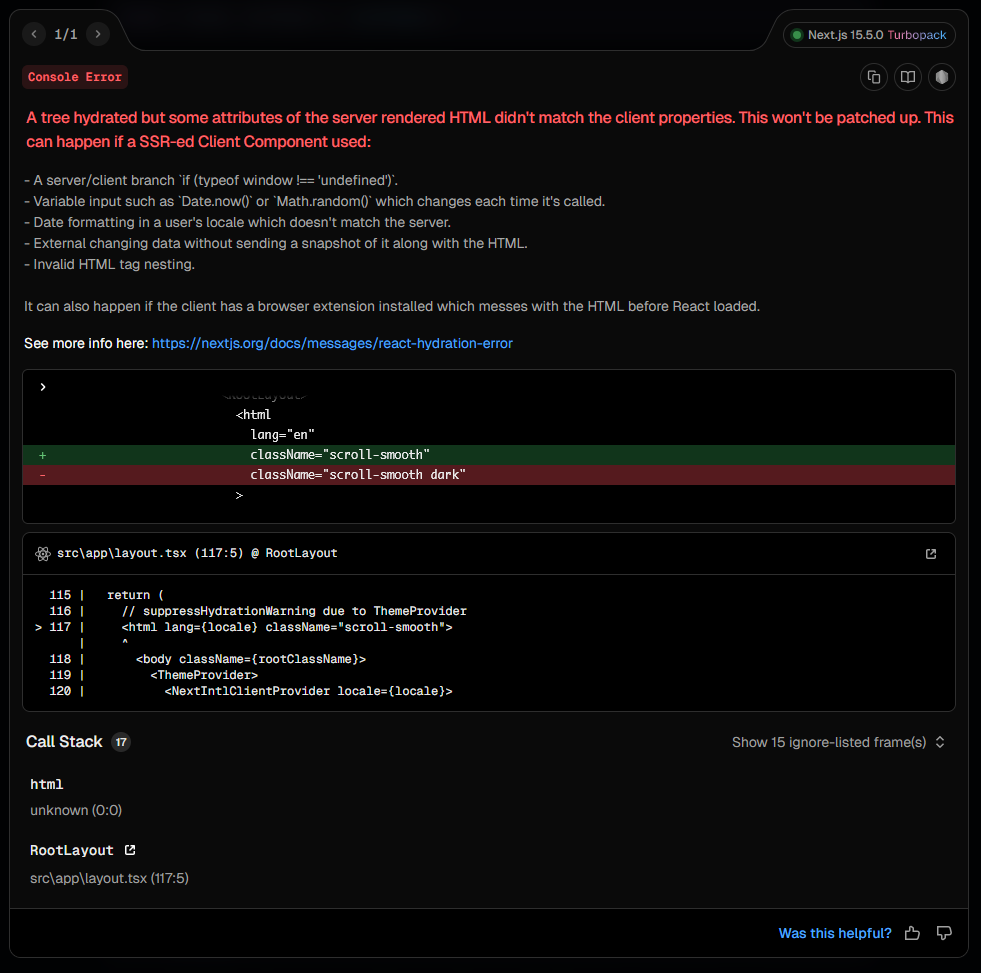
A hydration error.
This tells us that the React tree rendered on the server for app/layout.tsx is
different from what was rendered in the browser on the first render. Next.js
catches and warns us about this because hydration mismatches can reduce
performance.
No easy fix here, because that's exactly what our script is doing out of
necessity. We just need to add suppressHydrationWarning to app/layout.tsx
which suppresses this warning on just the <html> element, so we'll still be
notified of other hydration warnings in our app itself.
export default async function RootLayout({ children }: RootLayoutProps) {
  return (
    <html suppressHydrationWarning>
      <body>
        <ThemeProvider>{children}</ThemeProvider>
      </body>
    </html>
  );
}
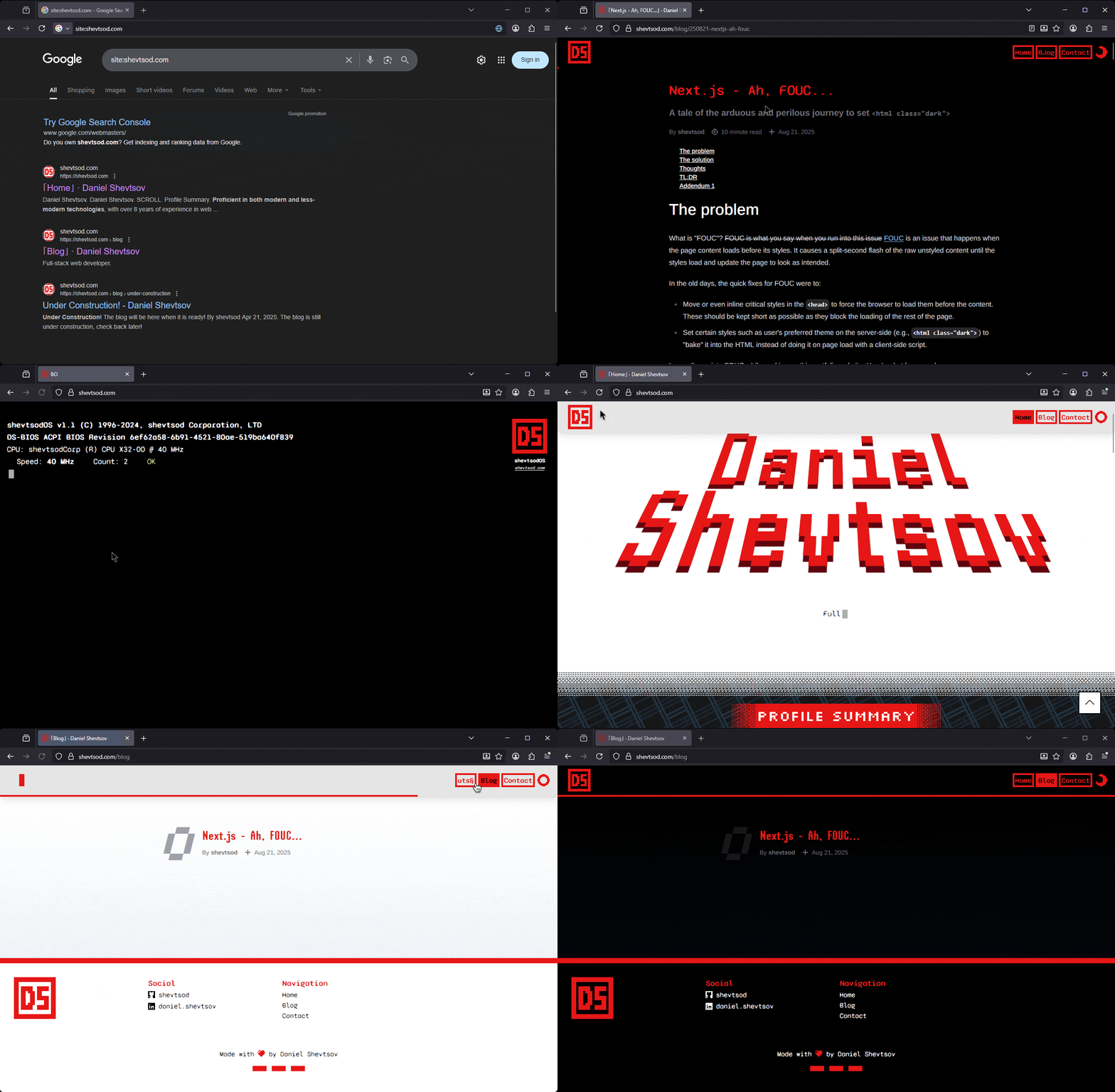
Et voilà, it works!
Thoughts
The solution above satisfies my use case but is definitely hacky in some places, notably:
-
<script
  suppressHydrationWarning
  dangerouslySetInnerHTML={{ __html: `(${script.toString()})()` }}
/>
Just the name
dangerouslySetInnerHTMLindicates that this is not something you should typically do, and(${script.toString()})()is just nasty. -
suppressHydrationWarningagain indicates that we are doing something unusual.
However, every other solution/workaround I found has these two elements. In
fact, there's a great NPM package
next-themes that solves this
same issue and in just
~500 lines of code.
It has a lot more bells and whistles than my basic solution above, including:
- Support for an arbitrary number of themes
- Sync the theme across browser tabs
- Force specific pages to a specific theme
- Indication of system or user-selected theme
But a look through its code exposes that it too uses both the
(${script.toString()})() IIFE and suppressHydrationWarning.
If I were to do it again, I would definitely just use next-themes because of
all its features, but I have a much better understanding of how and why it works
like this after going through this exercise myself.
Ultimately, I think this is a DX deficiency in Next.js. It would be really great if we could just do something like this instead. Maybe someday.
export default async function RootLayout({ children }: RootLayoutProps) {
  return (
    <html>
      <head>
        <script>
          document.documentElement.classList.add(localStorage.getItem('theme'));
        </script>
      </head>
      <body>{children}</body>
    </html>
  );
}
TL;DR
- If you use Next.js, just use
next-themes. - If you don't use Next.js, just use
document.documentElement.classList.add("dark")in a<script>in<head>. 😉
Addendum 1
After I got the ThemeProvider working, I ran into a really confusing bug. It
was working on some pages but not others, and only when deployed on GitHub
Pages. It worked just fine when I ran the production build locally, and I spent
hours troubleshooting it.
Well, as it turns out, it was because of a different hydration error. It was
because I was using date-fns to format dates for blog
posts. By default, it formats with the machine's/browser's local timezone, so it
was working fine on my machine. But when I deployed to GitHub Pages, the static
export was generated with the GitHub Actions runner's timezone, so when I opened
the page, the server-side (i.e., statically generated) output one date, and
then the hydrated client-side output another one and bam... ✨ hydration
error ✨.
All I needed was to use @date-fns/utc to
keep the timezones consistent, but man, that was confusing.